
How to Email Random Notes from Obsidian: 3 Setup Options
Obsidian’s built-in Random Note core plugin opens a random note inside the app. It does not send notes by email, so email delivery requires an external automation or a connected service.
Sending selected notes to an inbox creates a low-friction prompt to rediscover older thinking without opening the vault specifically to browse it. For knowledge workers and note-takers, this can make an archive easier to revisit and maintain.
Why send random Obsidian notes by email?
As an Obsidian vault grows, individual notes become harder to revisit. Note-taking tools are effective for capturing thoughts, but they do not always provide a convenient way to encounter older ideas again.
Email can act as a simple rediscovery channel. A note that appears during a normal inbox check may prompt a reader to update an outdated idea, connect it to current work, or recognize that it is no longer useful.
A practical resurfacing workflow can support four activities:
- Resurface: Older notes return to attention without manual searching.
- Reconnect: Past ideas can be considered alongside current projects.
- Refresh: Outdated assumptions and early drafts can be edited.
- Remix: Separate fragments may combine into new writing, projects, or decisions.
This is different from conventional memorization. Daily Brain Bits is designed to resurface existing personal notes, not replace flashcard tools such as Anki or reading-highlight services such as Readwise.
| Knowledge focus | Typical tools | What gets reviewed | Review style |
|---|---|---|---|
| Facts, languages, and exams | Anki, SuperMemo, RemNote | User-authored flashcards | Active grading against specific prompts |
| External reading and highlights | Readwise, Matter, Kindle | Saved quotes and book highlights | Passive rereading with optional review prompts |
| Personal notes and drafts | Daily Brain Bits | Existing Obsidian and Notion pages | Email resurfacing with optional concept quizzes |
Three ways to resurface random Obsidian notes (including email)
There are three practical approaches: using Obsidian’s in-app plugin, building a custom workflow, or connecting a purpose-built service.
1. Obsidian’s Random Note plugin (in-app only)
Obsidian includes a native core plugin called Random Note. When enabled, it opens an existing note at random inside the Obsidian workspace.
This works well for spontaneous discovery during an active note-taking session. However, it is not an email solution. The plugin does not schedule messages or deliver notes outside Obsidian.
2. Build a custom Obsidian-to-email automation
A technical user can create a workflow that selects notes and prepares them for email delivery. Depending on the setup, it may involve:
- A script or automation that selects a note from the vault
- Markdown parsing or formatting for email
- A scheduler, such as an operating-system task scheduler or a Shortcuts/Actions workflow
- An email delivery method
The exact implementation depends on the user’s operating system, email setup, and preferred tools. This approach can provide extensive customization, but it also requires technical work and ongoing maintenance. File selection, formatting, credentials, scheduling, and device availability may all need attention.
3. Daily Brain Bits for Obsidian note emails
Daily Brain Bits is a purpose-built option for resurfacing existing Obsidian and Notion notes through email. Users can choose an email frequency and the number of notes included in each message.
The Obsidian connection uses a plugin downloaded from the project’s GitHub Releases page. Users can also configure include and exclude filters, such as selecting Markdown files or excluding template folders.
Daily Brain Bits also supports optional features for working with personal notes:
- Prioritization: Users can prioritize notes that deserve more attention.
- Deprioritization: Notes can be deprioritized when they are less relevant.
- LLM multiple-choice quizzes: The tool can generate quizzes that hide one to three concepts, such as names or dates.
- Suggested links: The tool can suggest relationships between notes.
The available plan structure and feature details may change, so readers should check current Notionist product information before choosing a plan.
Which Obsidian note-resurfacing approach is right for you?
| Approach | Delivery location | Setup effort | Customization | Best use |
|---|---|---|---|---|
| Obsidian Random Note core plugin | Inside Obsidian | Low | Limited to in-app random-note discovery | Quick prompts while working in Obsidian |
| DIY automation | Email inbox, depending on the workflow | High; requires technical setup and maintenance | High; the workflow can be shaped around personal requirements | Users who want to build and maintain custom logic |
| Daily Brain Bits | Email inbox, with connected note sources | Plugin installation, token connection, and filter setup | Email frequency, note volume, note priority, and optional quizzes or link suggestions | A purpose-built workflow for resurfacing personal notes |
How to connect Obsidian to Daily Brain Bits for email delivery
The documented connection process uses an Obsidian community plugin and desktop-style Obsidian settings. Mobile users should confirm current compatibility and installation requirements before proceeding.
- Log in or sign up
Users can create an account or log in to Daily Brain Bits to begin. - Select Obsidian as the note source
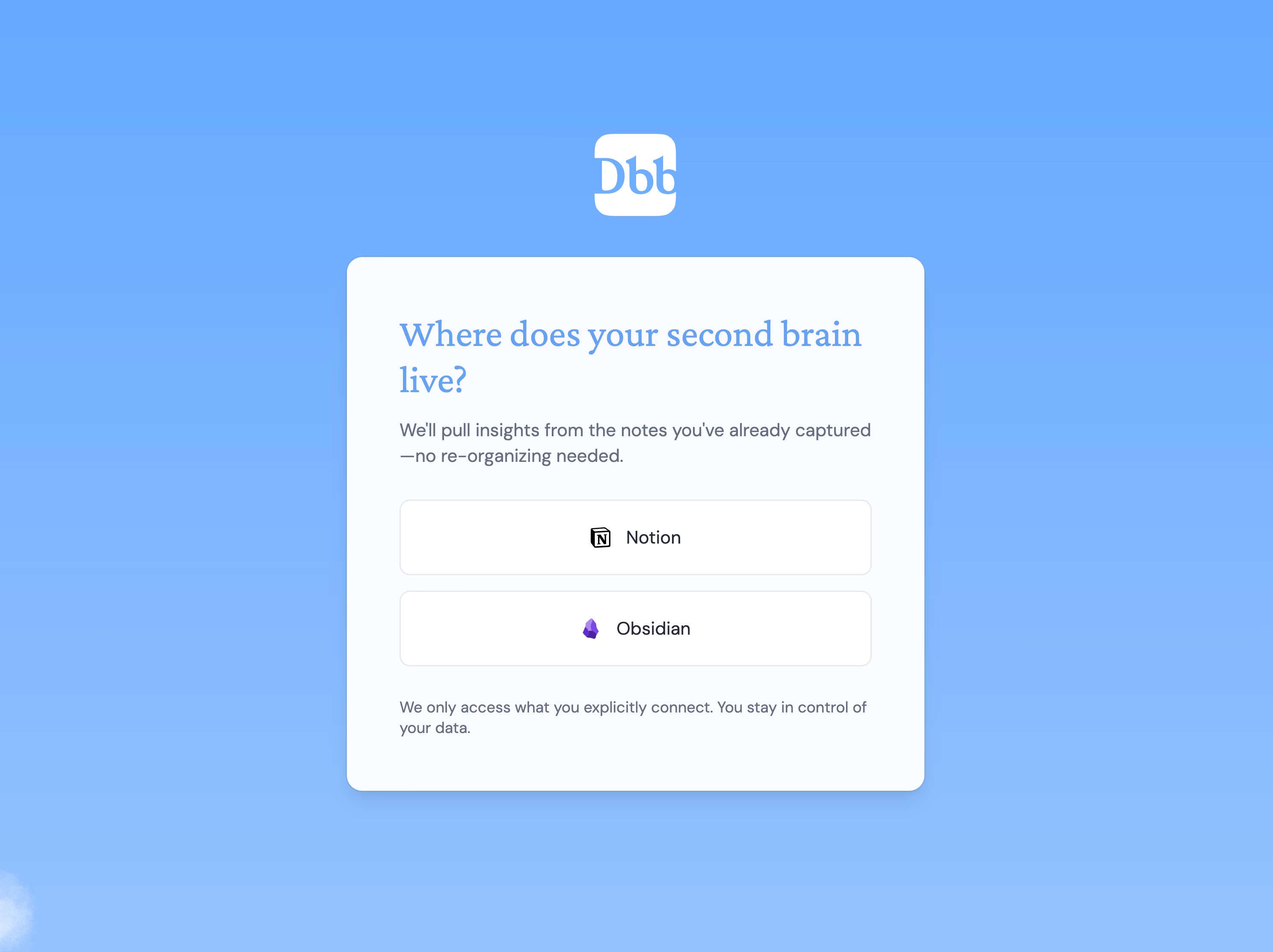
Choose Obsidian from the source connection screen during onboarding.
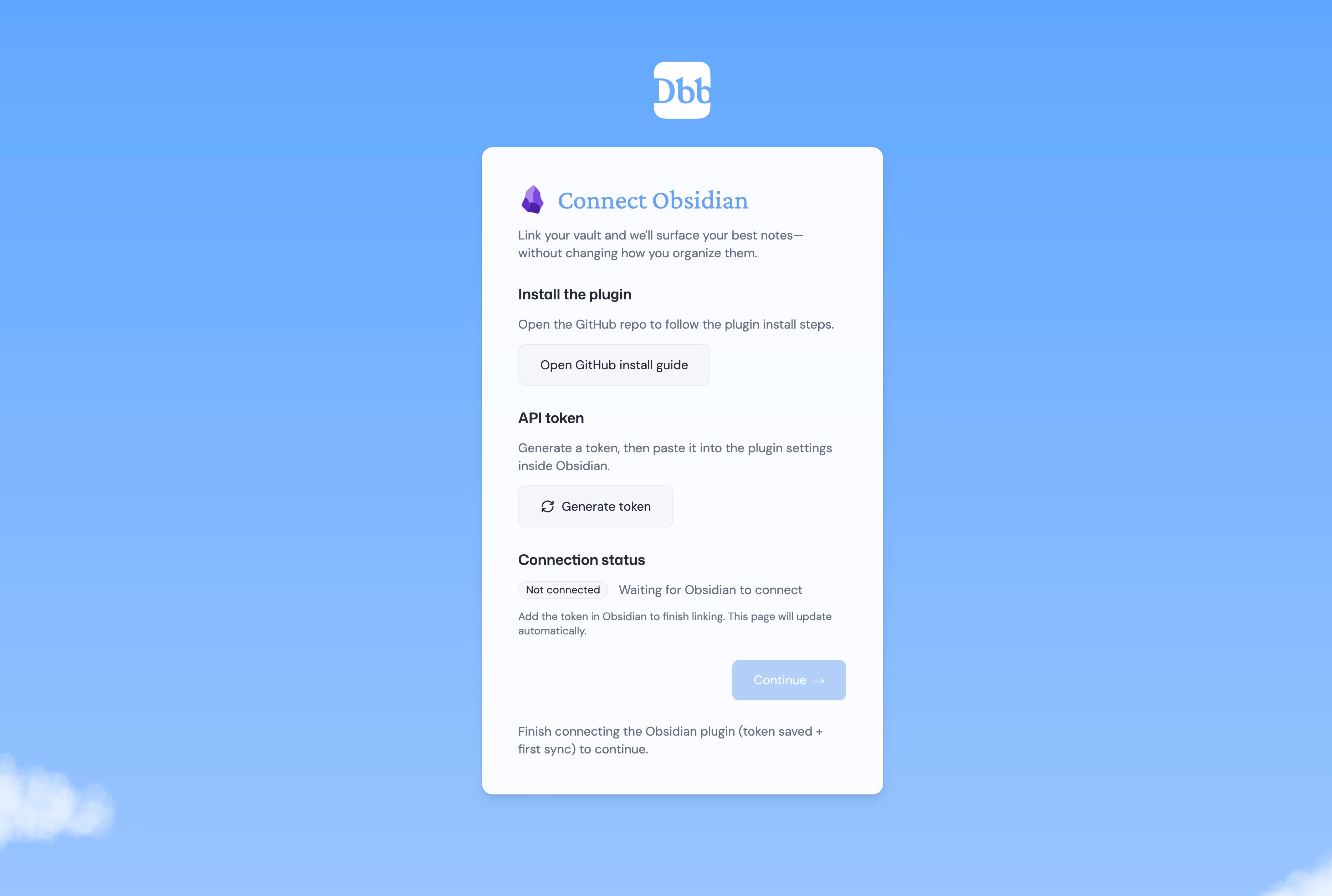
- Open the Obsidian setup screen
Continue to the plugin configuration page in the onboarding flow.
- Download the plugin
Visit the Daily Brain Bits GitHub Releases page (opens in a new tab) and download the latest plugin archive. - Open the Obsidian plugins folder
In Obsidian, open Settings withCmd+,on Mac orCtrl+,on Windows and Linux. Go to Community plugins and use the folder icon to open the local plugins directory.
The documented instructions are desktop-oriented. Mobile users should confirm whether the plugin and this installation method are supported on their device.
6. Add the plugin files
Unzip the downloaded archive and copy its files into a folder named daily-brain-bits inside the plugins folder.
7. Enable the plugin
Return to Obsidian’s Community plugins menu, find Daily Brain Bits, and enable it.
8. Generate a connection token
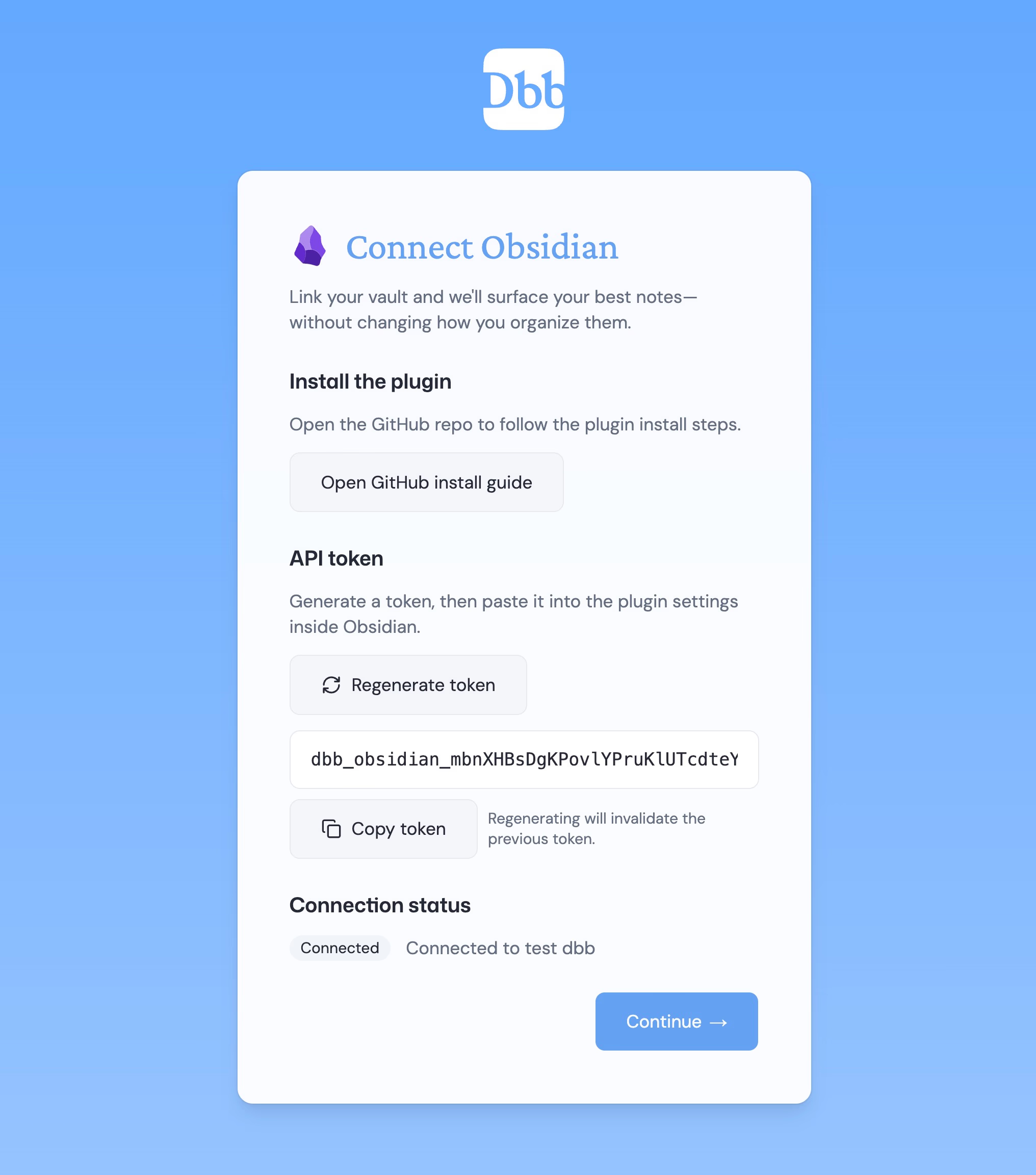
Return to the Daily Brain Bits onboarding tab and select the option to generate a connection token.
9. Paste the token into Obsidian
Open the Daily Brain Bits plugin settings in Obsidian and paste the token into the plugin token field. The connection should begin, with a linking notification appearing in Obsidian.
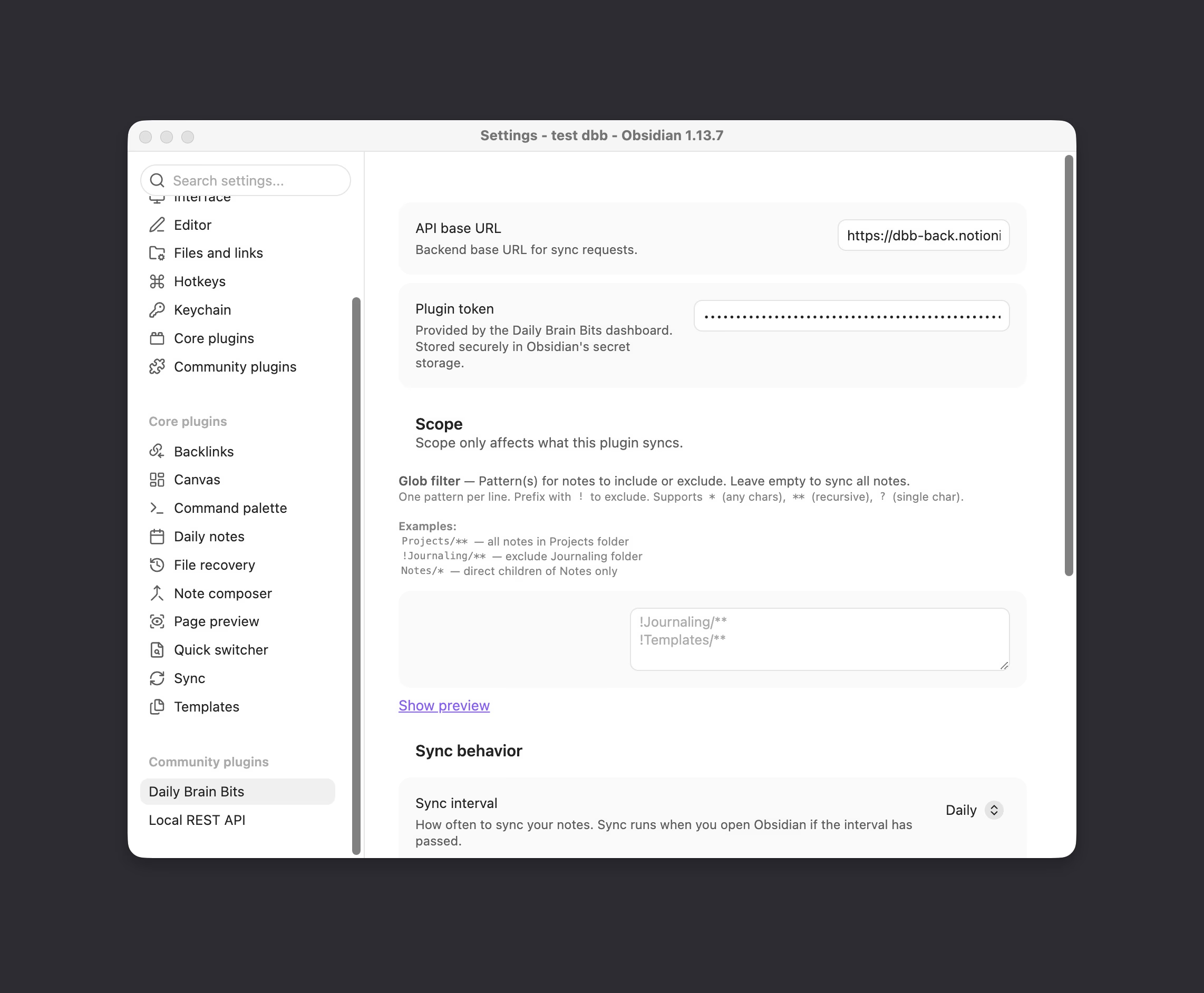
- Configure optional filters
Use glob patterns in the plugin settings to control which files sync. For example,**/*.mdcan include Markdown files, while!**/templates/**can exclude a templates folder. - Confirm the connection
Return to the Daily Brain Bits browser onboarding page and confirm that the vault is linked.
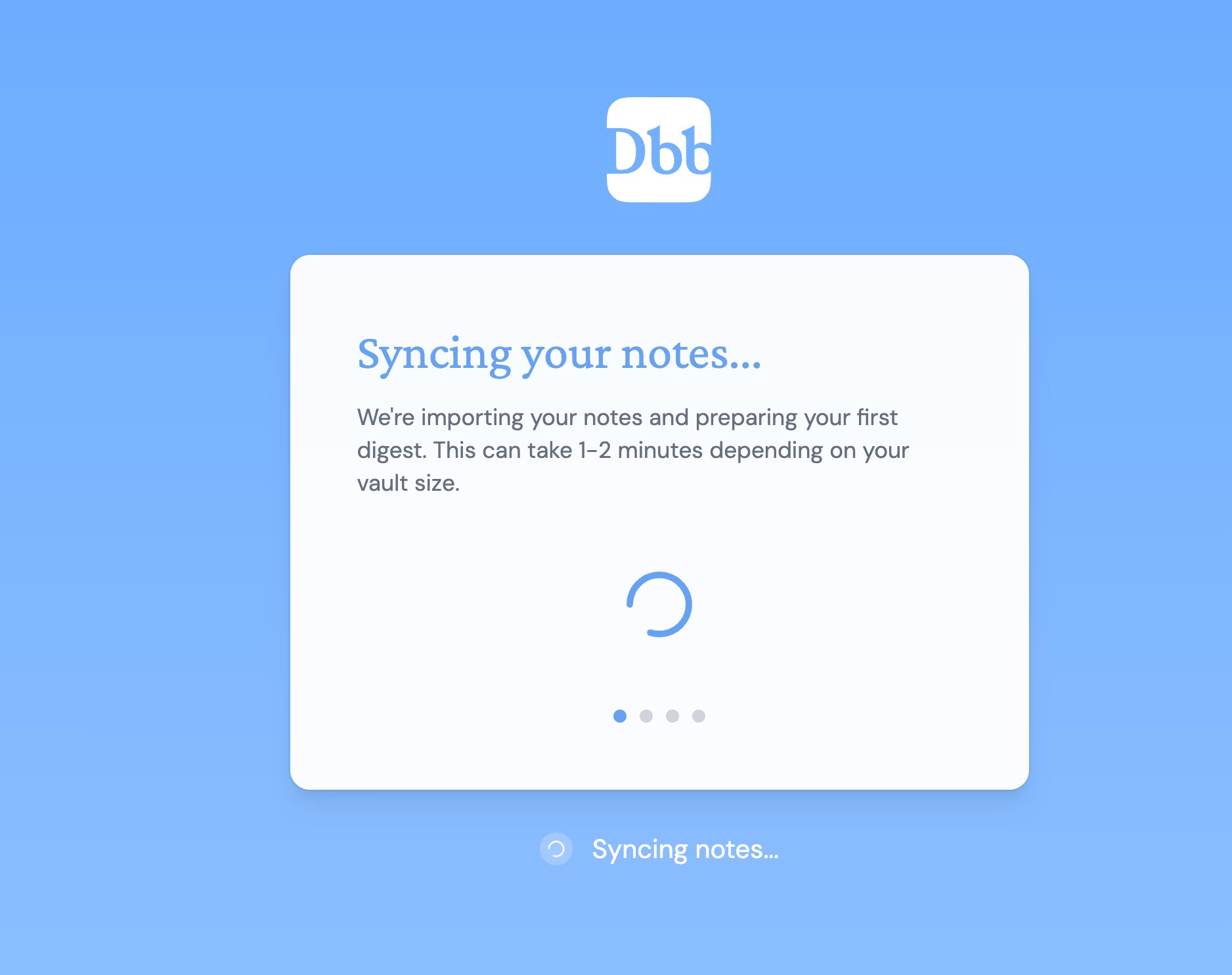
- Start the note import
Continue to begin synchronization and wait for the notes to import.
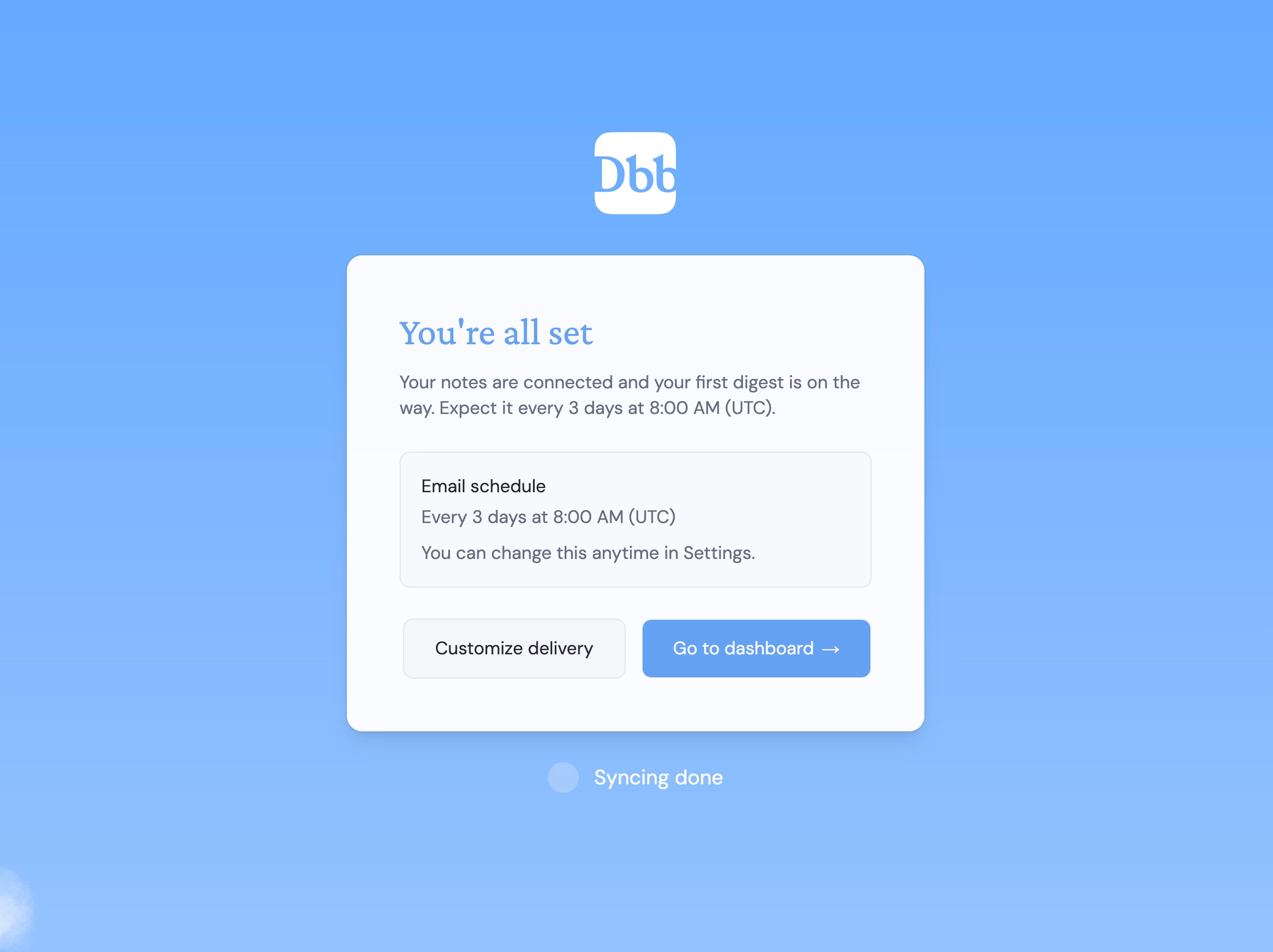
- Set the email schedule
After the import completes, choose the preferred email frequency and number of notes per email. These settings can be changed later in the account preferences.
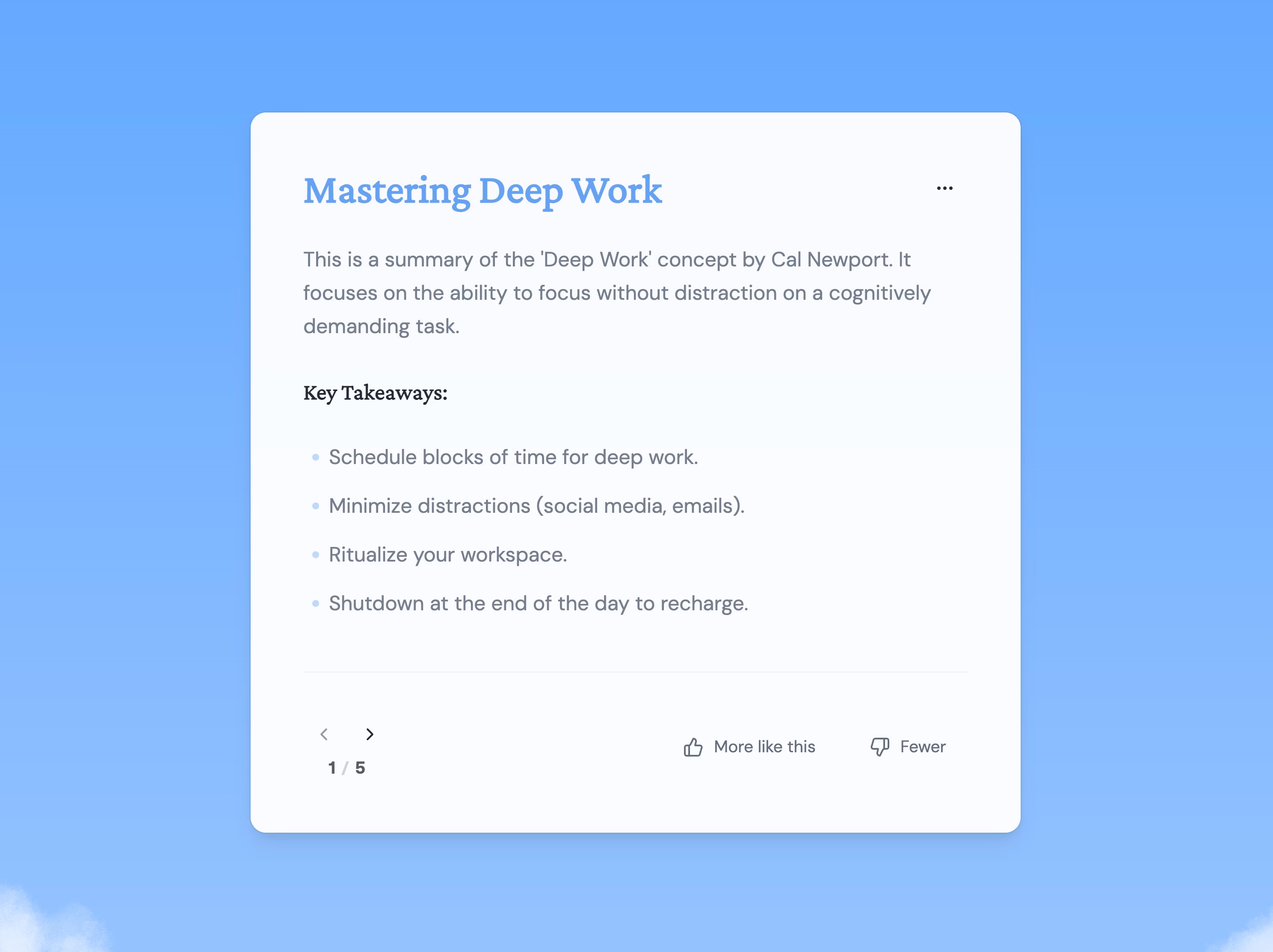
- Review the dashboard
Open the dashboard to view the notes selected for review.
How to make random Obsidian note emails useful
Random-note emails work best when the selected notes are relevant and manageable. Including every meeting log, template, attachment, and unfinished checklist can create unnecessary noise.
Filter your vault and start with a small note set
A focused collection makes it easier to evaluate whether the workflow is useful. Users can begin with a subset of notes containing evergreen ideas, important concepts, or project summaries.
Useful filtering choices include:
- Excluding templates and attachments
- Including Markdown files with
**/*.md - Excluding template folders with
!**/templates/** - Starting with a manageable group of notes before expanding the selection
The goal is not to resurface everything immediately. It is to create a review stream that contains enough variety to be useful without overwhelming the inbox.
Use each random-note email as a maintenance prompt
A resurfaced note does not need to become a memorization exercise. It can simply prompt one of four actions:
- Keep it: Reread a strong, evergreen insight.
- Refresh it: Edit an outdated idea or unfinished draft.
- Reconnect it: Consider how it relates to current work.
- Remix it: Combine it with another idea for a project or piece of writing.
- Deprioritize it: Reduce attention on an irrelevant or completed reference.
This makes the email a practical prompt for maintaining a personal knowledge base.
Adjust email frequency, note volume, and note priority
Daily Brain Bits allows users to choose how often emails arrive and how many notes each email contains. Users can also prioritize notes that matter more or deprioritize notes that need less attention.
Optional LLM multiple-choice quizzes can hide one to three concepts, such as names or dates. Suggested links can also help identify relationships between existing notes. These features are optional ways to interact with resurfaced material; they do not turn the workflow into a replacement for a dedicated flashcard system.
Choosing an Obsidian random-note email workflow
Obsidian’s Random Note core plugin is useful for discovering notes inside the app, but it does not send email. Users who want inbox delivery can build a custom workflow or connect Daily Brain Bits to resurface Obsidian and Notion notes with configurable frequency, note volume, filters, and optional quizzes or link suggestions.
A practical starting point is to connect a focused group of notes, choose a manageable email frequency, and adjust the selection after seeing which resurfaced ideas are most useful.
