
Build a Spaced Repetition System in Notion Step by Step
Your Notion workspace may contain everything you want to remember, yet the notes you need most can still disappear into a database. Spaced repetition solves that problem by bringing key ideas back when you are most likely to forget them, while active recall makes each review more effective than rereading.
This guide shows you how to build a practical system in Notion, run a daily review loop, and decide when automation is worth it.
Why use Notion for spaced repetition and when it fits
What spaced repetition actually is and isn’t
Spaced repetition isn’t just about cramming or regularly rereading your notes. It is a research-backed method that helps you remember information for the long haul.
Here’s how it works: you test yourself on information after growing time gaps, such as after 1 day, then 3 days, then a week, and so on. Before you peek at the answer, try to recall it from memory. Then check yourself and give quick feedback so you catch mistakes early.
So, what’s really going on? That mix of spacing practice, active recall, and immediate correction trains your brain to hold onto knowledge.
Don’t get hung up on eye-catching stats like “you’ll forget 50% in the first hour.” Those numbers are oversimplified, and forgetting depends on what you are learning and how well you studied it. Overall, spacing out your reviews and quizzing yourself usually works better than just rereading.
When spaced repetition in Notion makes sense
Notion is a good fit for spaced repetition when your focus is keeping the important stuff alive, reviewing the core concepts that matter instead of trying to memorize endless lists of isolated details.
Here’s where Notion really shines:
- School or exam notes: You might take plenty of notes for a class but, come finals, only remember a small chunk. With spaced recall in Notion, you can resurface the key ideas just enough to keep them fresh and avoid wading through pages of old notes.
- Second brain / PKM (Personal Knowledge Management): Notion helps build a “second brain,” but most notes wind up buried. Spaced repetition brings your best ideas back to the surface so they stay useful.
- Book and article notes: It is easy to forget those highlights from books or articles. Spaced recall prompts you to actually use and remember them, instead of letting them vanish in the archive.
- Work and project knowledge: For processes, frameworks, or best practices you want ready when you need them, spaced reviews help keep things sharp.
- Vocabulary, frameworks, or reference material: Notion’s custom databases make it easy to set up simple review schedules for languages or frameworks without needing traditional flashcards.
Build a spaced repetition system in Notion
Create the database and properties
Start by making a Notion database in table or gallery view. Each card becomes its own page, with a few key properties:
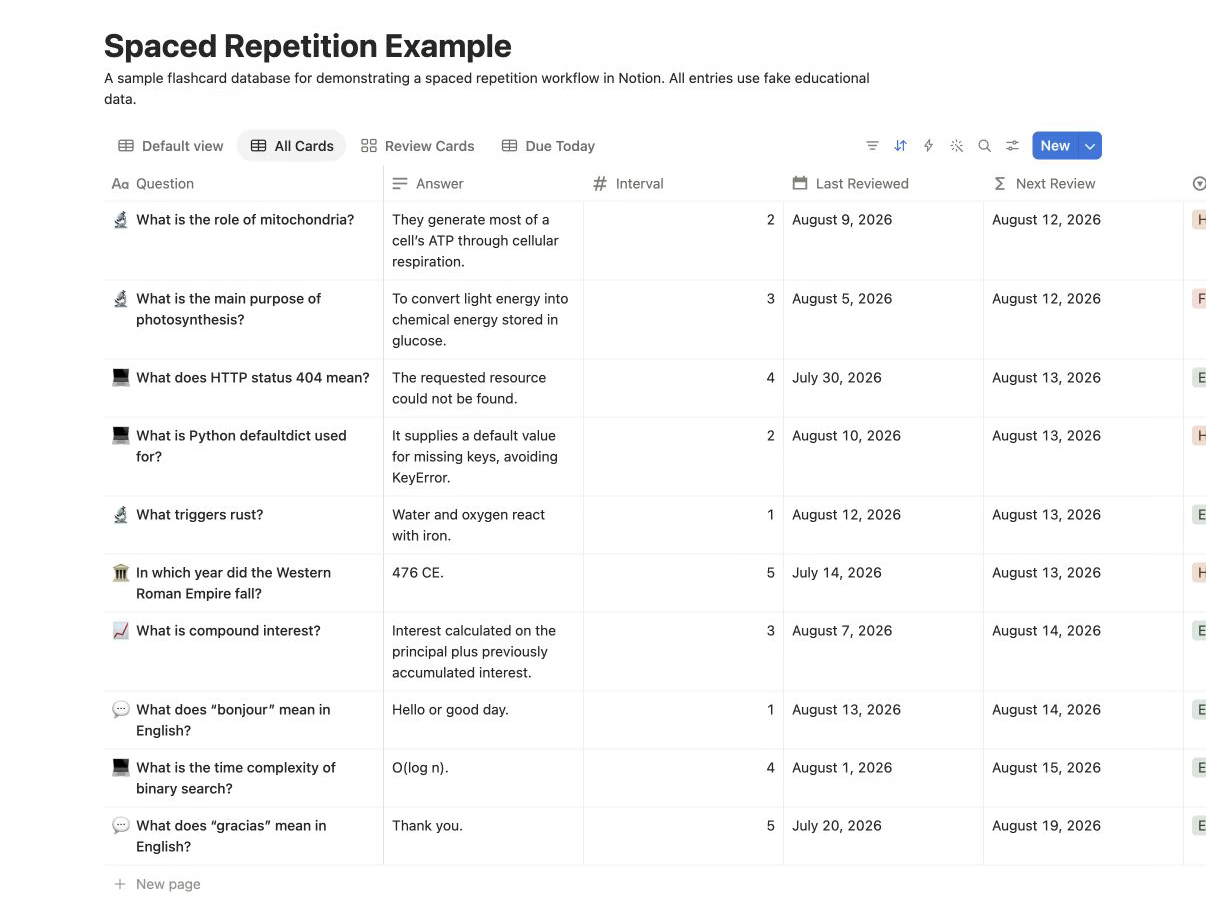
- Question: What are you testing yourself on? This could be a concept, a prompt, or a bite-sized fact you want to review.
- Answer: The details or solution you want to remember.
- Status, Box, or Interval: This tracks your spot in the review cycle. You can use a number for intervals, 1, 2, 3, or a box number if you’re following the Leitner system.
- Last Reviewed: The last date you went over the card.
- Result: Whether you remembered the answer or need more practice.
- Topic/Tags: Optional categories for sorting and filtering. These are helpful if you’re juggling a few subjects or projects.
Tip: Create a Button property for each card so you can update it in one click after reviewing. Configure the button to set Last Reviewed to today, then increment the Interval or update the Status for the next stage of your review cycle.
Set these properties up so every flashcard or note you want to revisit gets its own row.
Here’s a quick example of what this table might look like:
| Question | Answer | Interval | Last Reviewed | Result | Topic |
|---|---|---|---|---|---|
| What triggers rust? | Water and oxygen. | 1 | 2026-08-12 | Yes | Science |
| Python defaultdict use? | Avoid KeyError, ... | 2 | 2026-08-10 | No | Coding |
This setup gives you a solid structure to build your review schedule.
Add a next-review-date formula
To keep your review schedule running, add a formula property called Next Review. This calculates when each card is due for its next pass based on the interval you set.
Let’s keep it simple: set Interval as a number, 1, 2, 3, and so on. Then build a formula like this:
dateAdd(prop("Last Reviewed"),
  if(prop("Interval") == 1, 1,
    if(prop("Interval") == 2, 3,
      if(prop("Interval") == 3, 7,
        if(prop("Interval") == 4, 14, 30)
      )
    )
  ), "days")
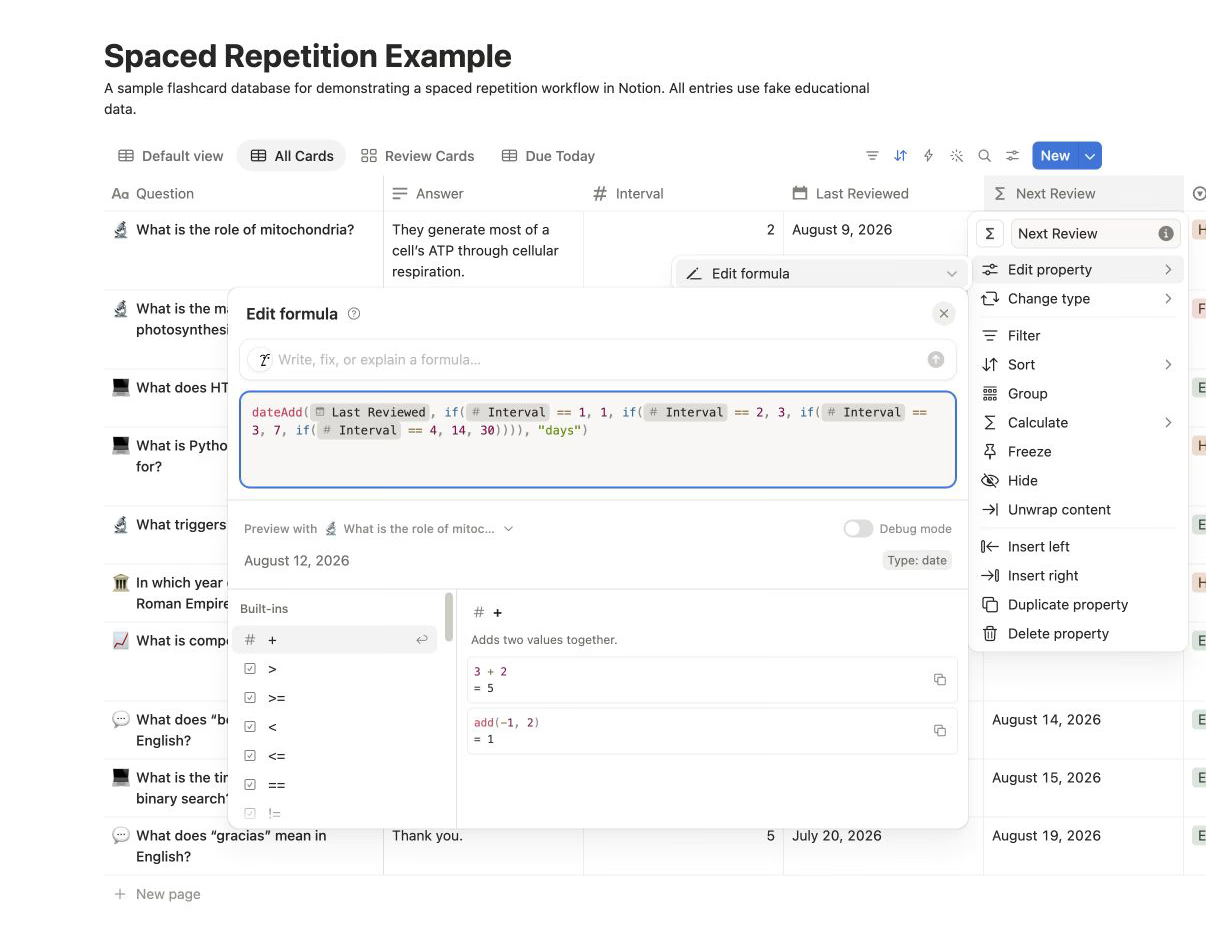
Or, if you’re using the Leitner system with Box numbers:
- Box 1 = review tomorrow
- Box 2 = review in 3 days
- Box 3 = review in 7 days
Feel free to tweak the numbers in the formula whenever you want to adjust your review pace.
Here’s how your formula property might look in Notion:
| ... | Interval | Last Reviewed | Next Review |
|---|---|---|---|
| 2 | 2026-08-10 | 2026-08-13 |
Now, Notion will automatically calculate the next review date for each card.
Make a Due Today view
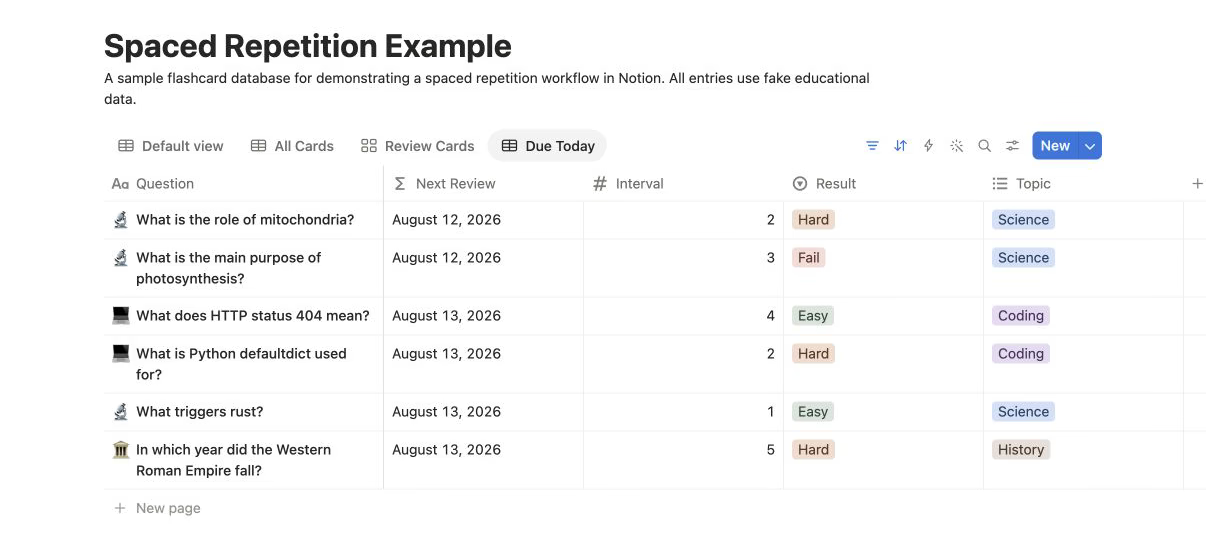
Set up your daily review queue by filtering your database for cards where Next Review is today or has already passed:
- Create a filtered view
- Show cards where Next Review is on or before today()
- Sort by Next Review in ascending order, so the most overdue cards show up first
This view becomes your daily to-do list for reviews and keeps everything organized.
Set up active recall
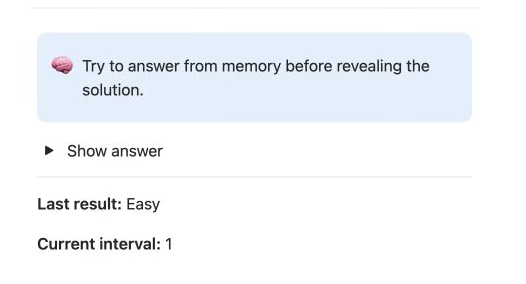
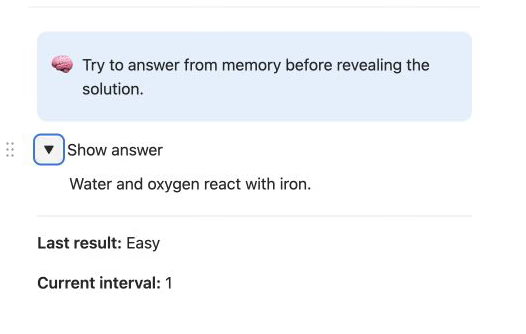
Keep your answers hidden when you start, using a toggle block, callout, or divider in Notion. This way, you challenge yourself to remember before you check.
- Put the Question at the top of the card’s page.
- Place the Answer inside a toggle block, like this:
Question: What triggers rust?
> [Toggle] Answer: Water and oxygen.
Before you reveal the answer, pause and try to recall it. Then, after checking, update the Result property. If you nailed it, bump up the Interval or Box number. If not, set Interval back to 1.
Follow these steps, and you’ll have a straightforward, effective spaced repetition workflow running right inside Notion.
The daily review loop
Open the “Due Today” view
Head to your "Due Today" view in your Notion database. This way, you only see the items that actually need your attention right now, making the session less overwhelming.
Recall first, no peeking
Pick a card, but keep the answer hidden for now. Try to recall the answer or explanation from memory before you flip the toggle.
Check, correct, and elaborate
Now, open the answer and see how you did.
If you left out something important, read through the note again to fill in those gaps and tighten up your understanding.
Rate and update the interval
Think about how the recall went, and choose a rating:
- Easy: You remembered instantly and completely, with no hesitation.
- Hard: You got some of it, struggled, or needed a hint.
- Fail: You couldn’t remember or got it wrong.
Based on your rating, update the card: bump up the interval or box number if you were right, or reset it to 1 if it was rough.
Move quickly: new vs. mature cards
New notes pop up more often until they stick.
Once you get them right a few times, they start showing up less, so you can focus on the tricky stuff. Most daily sessions only take a few minutes once you’ve got the routine down.
So, the daily review loop boils down to four core steps: look up what’s due, try to recall from memory, check your answer, then adjust when the card comes up next based on how you did.
Skip the manual system: use Daily Brain Bits
Let’s be honest, keeping a manual spaced repetition system going in Notion takes real persistence. If you fall behind, or stop checking your review views, the whole thing grinds to a halt.
If you want spaced repetition to actually happen without fiddling with formulas, Daily Brain Bits does the resurfacing for you. No constant upkeep required.
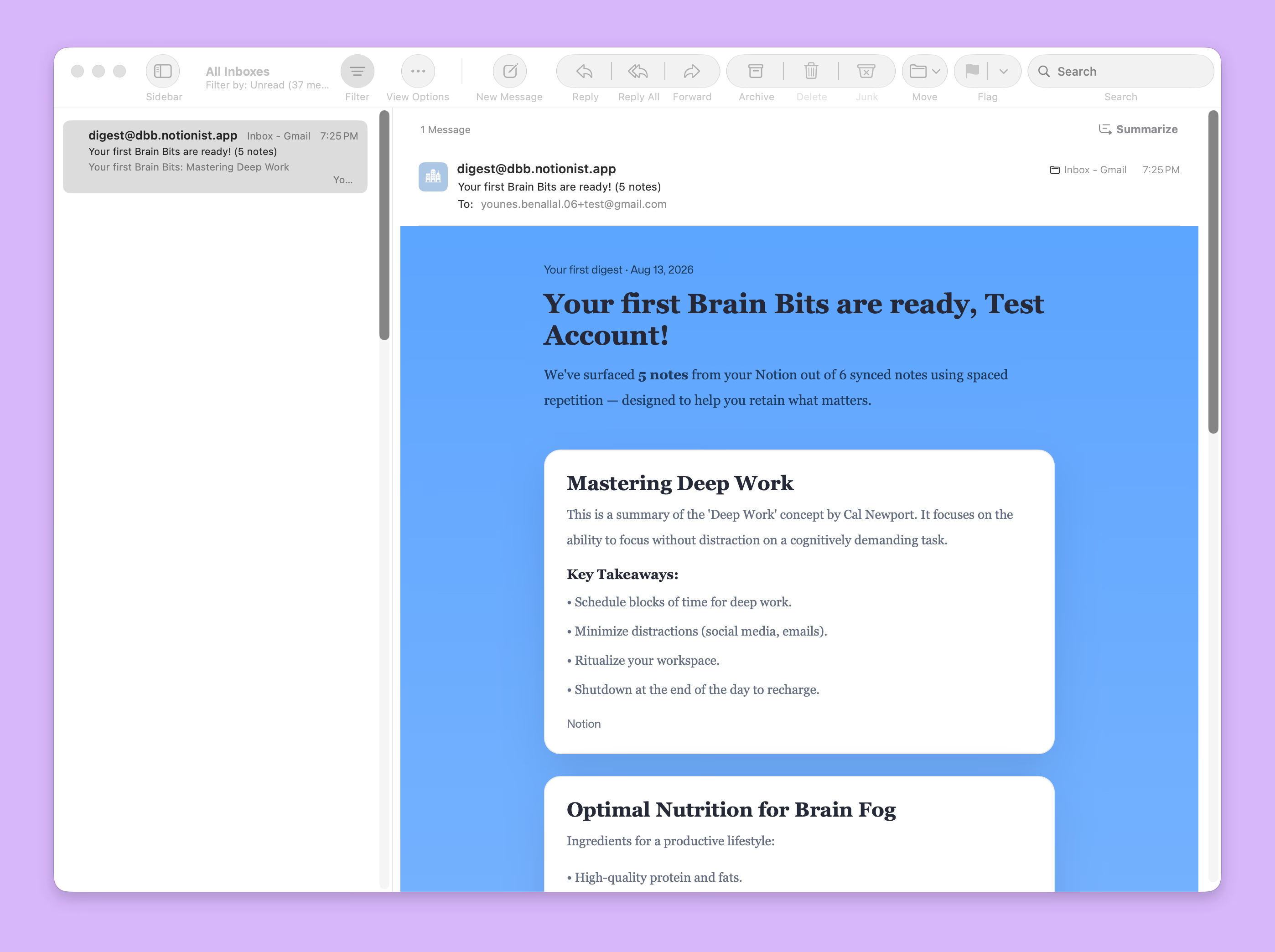
Plus, it sends your notes straight to your email inbox, making it easy to read them every day.
Connect Notion and choose databases
Getting started with Daily Brain Bits is pretty simple:
- First, create your Daily Brain Bits account, or log in if you already have one.
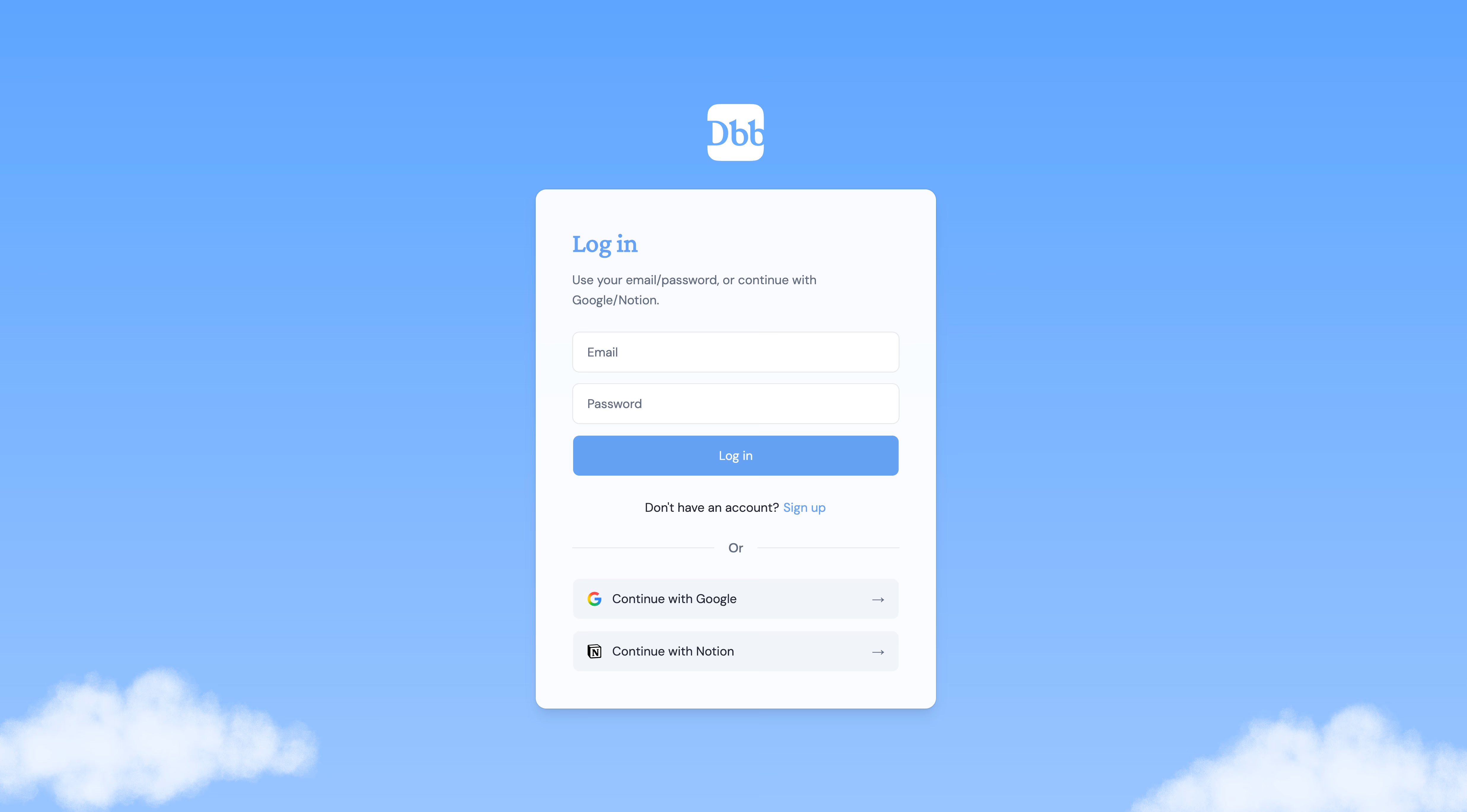
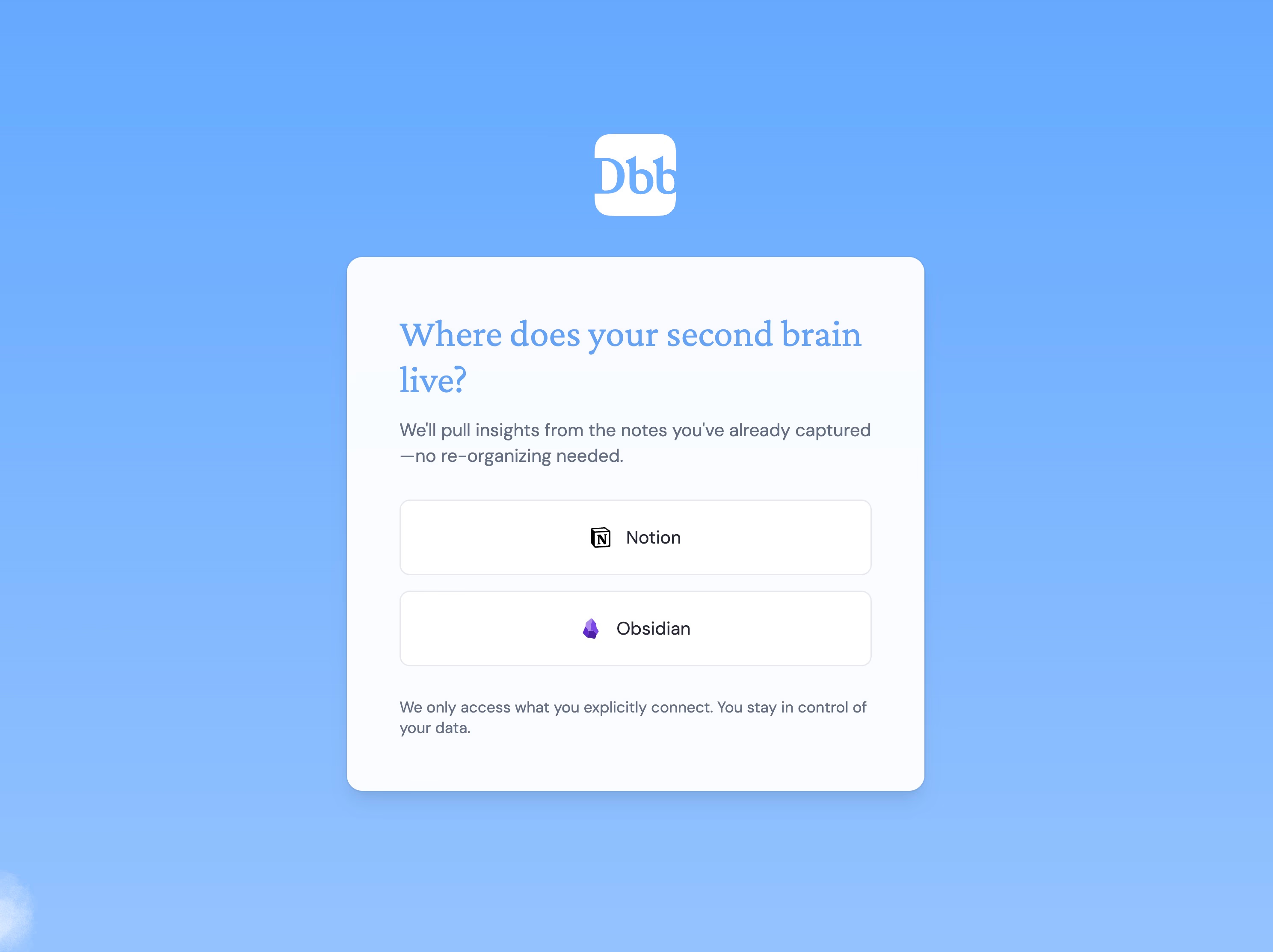
- Choose Notion as your note source.
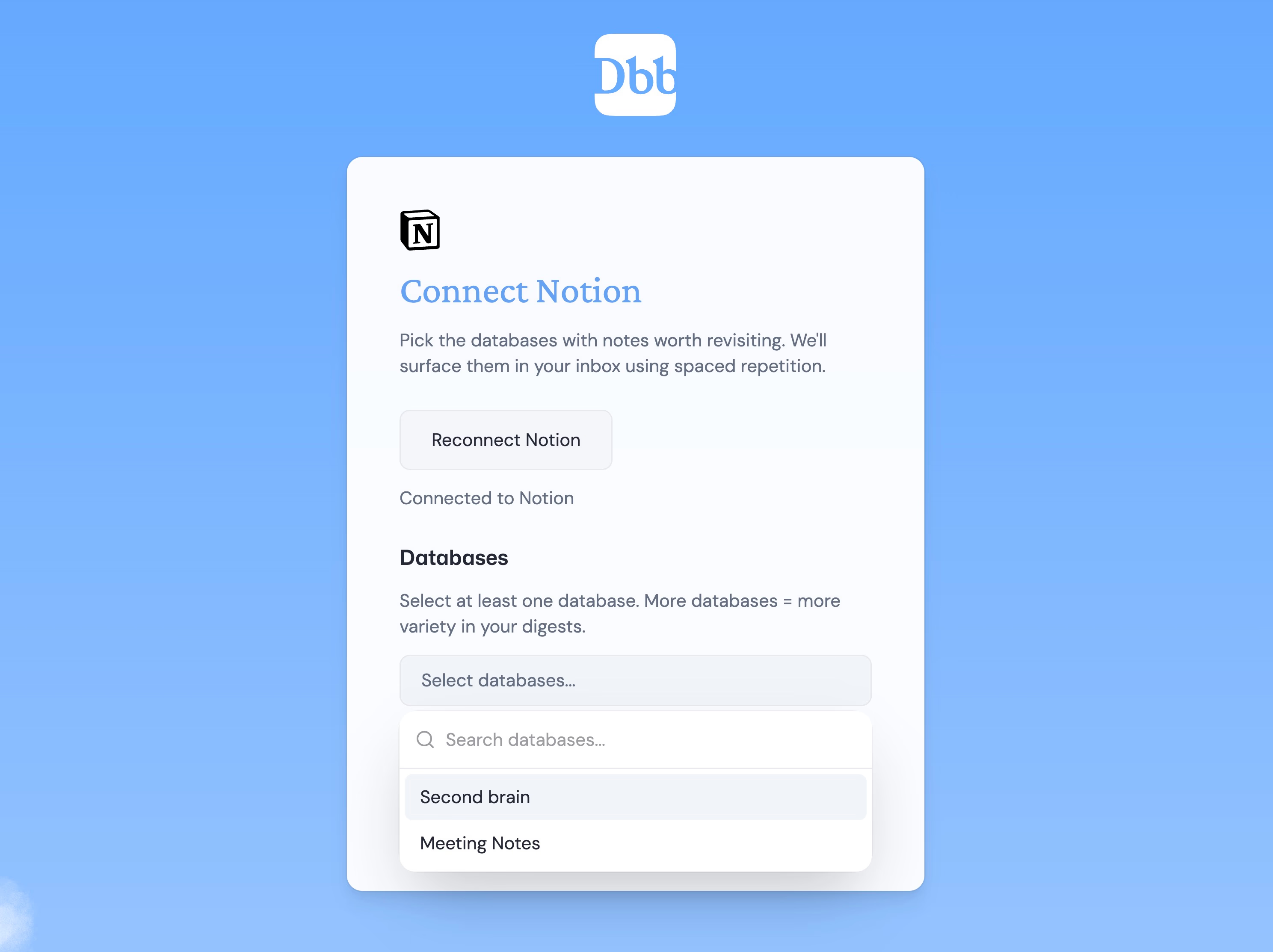
- Grant access to the Notion workspace and any databases you want to include.
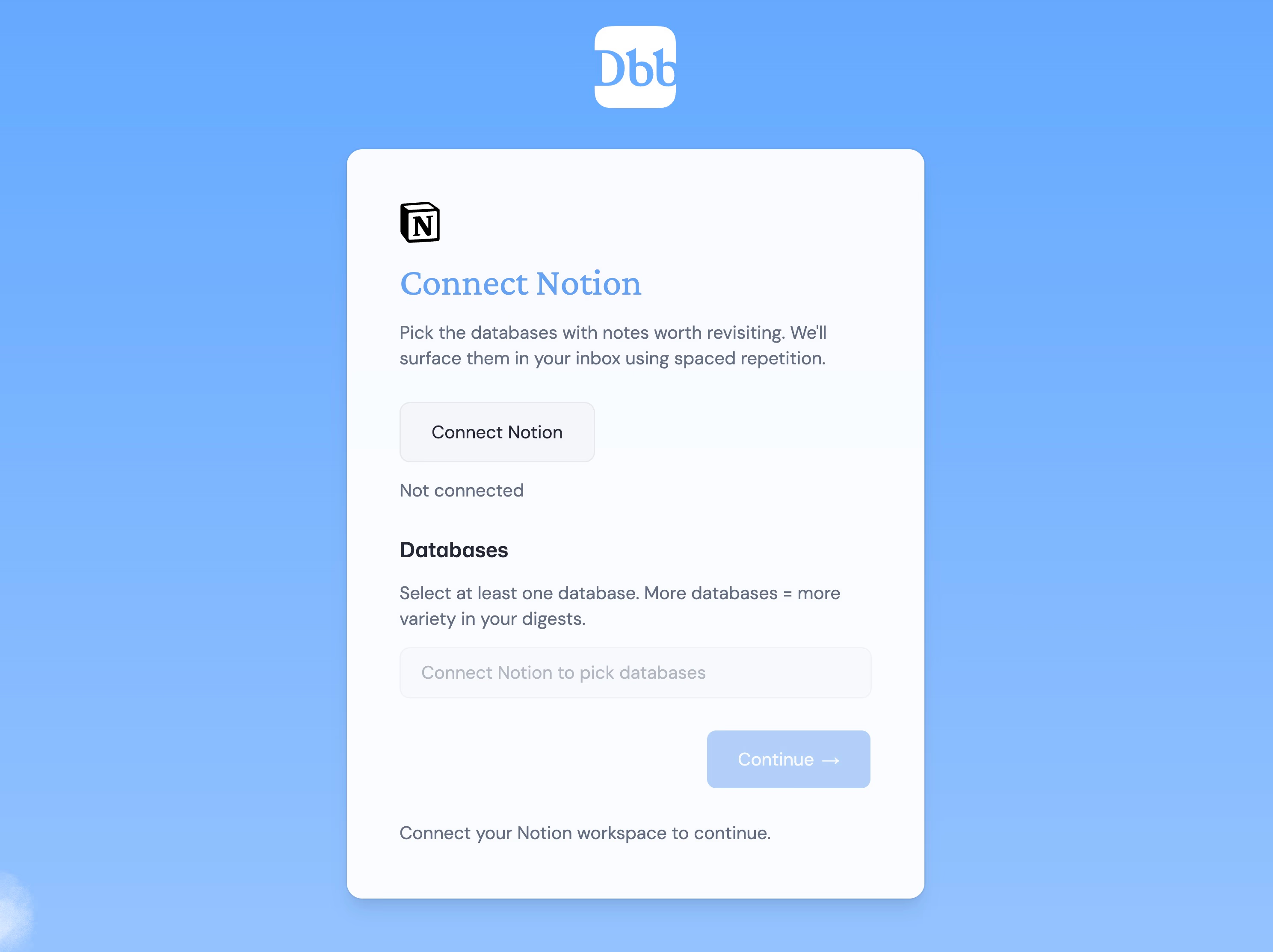
- Pick which Notion databases Daily Brain Bits should use.
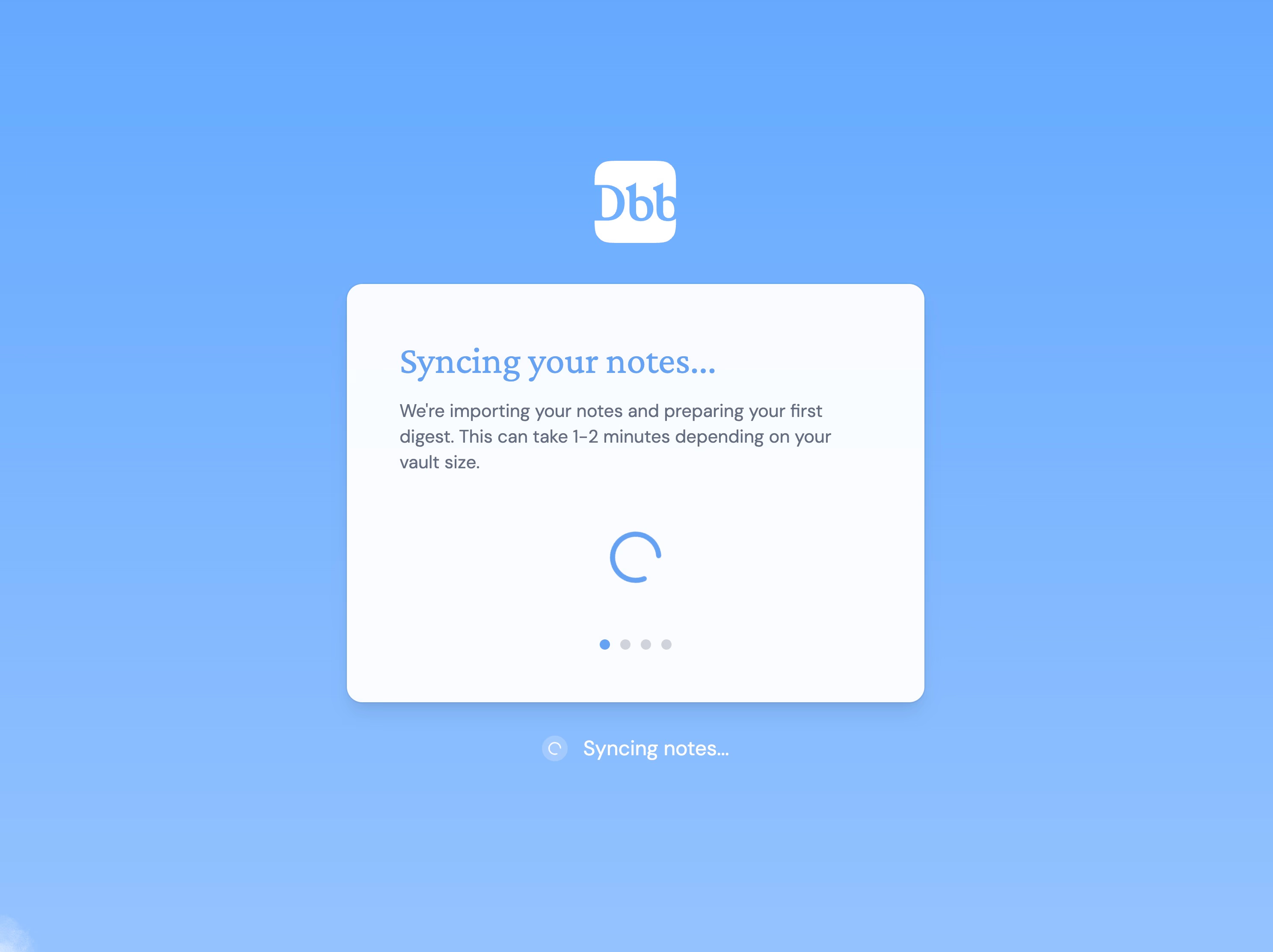
- Let it import your pages, this happens automatically.
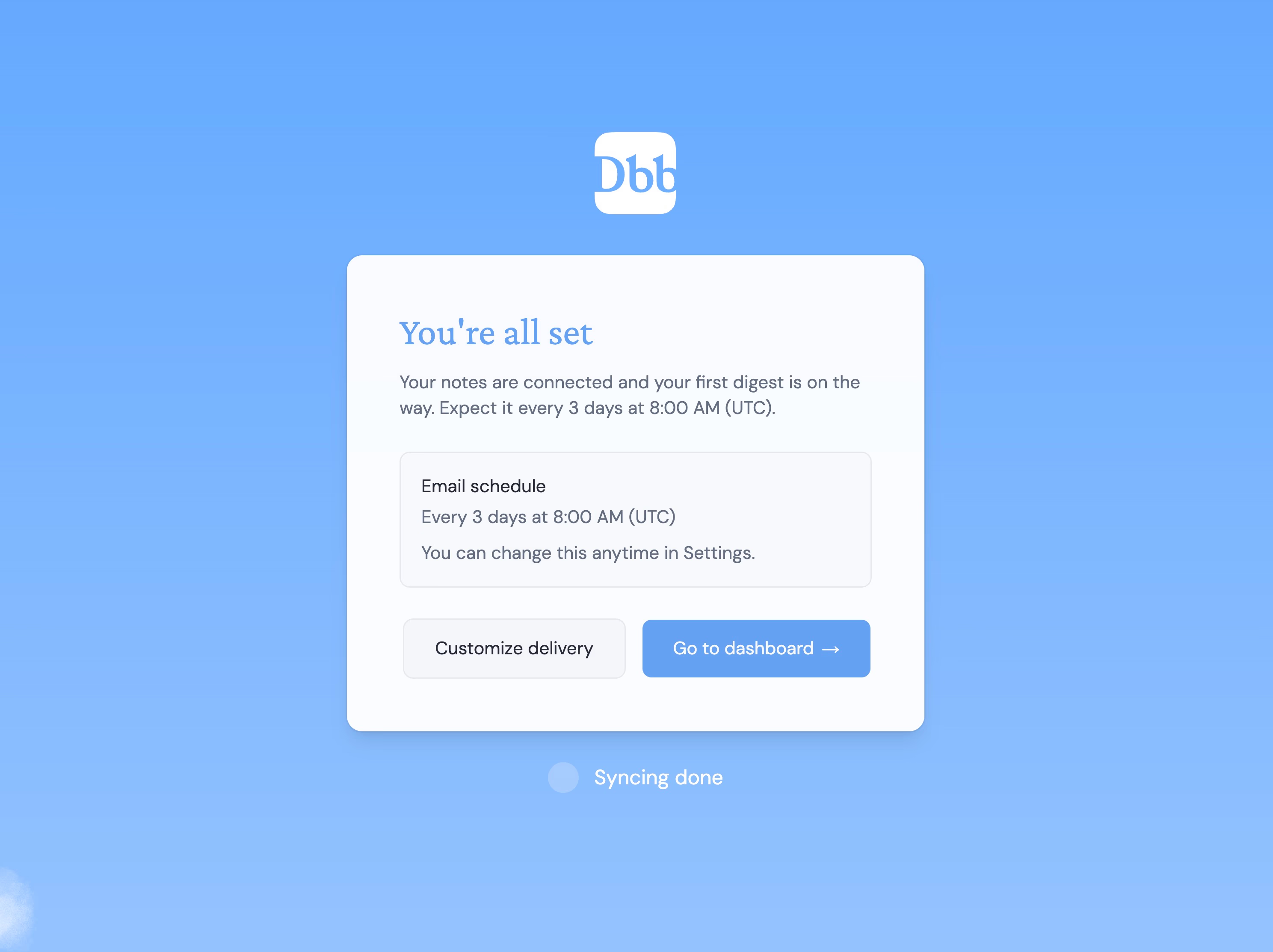
- Choose how often you want to get new notes, every day or just on the days that work for you.
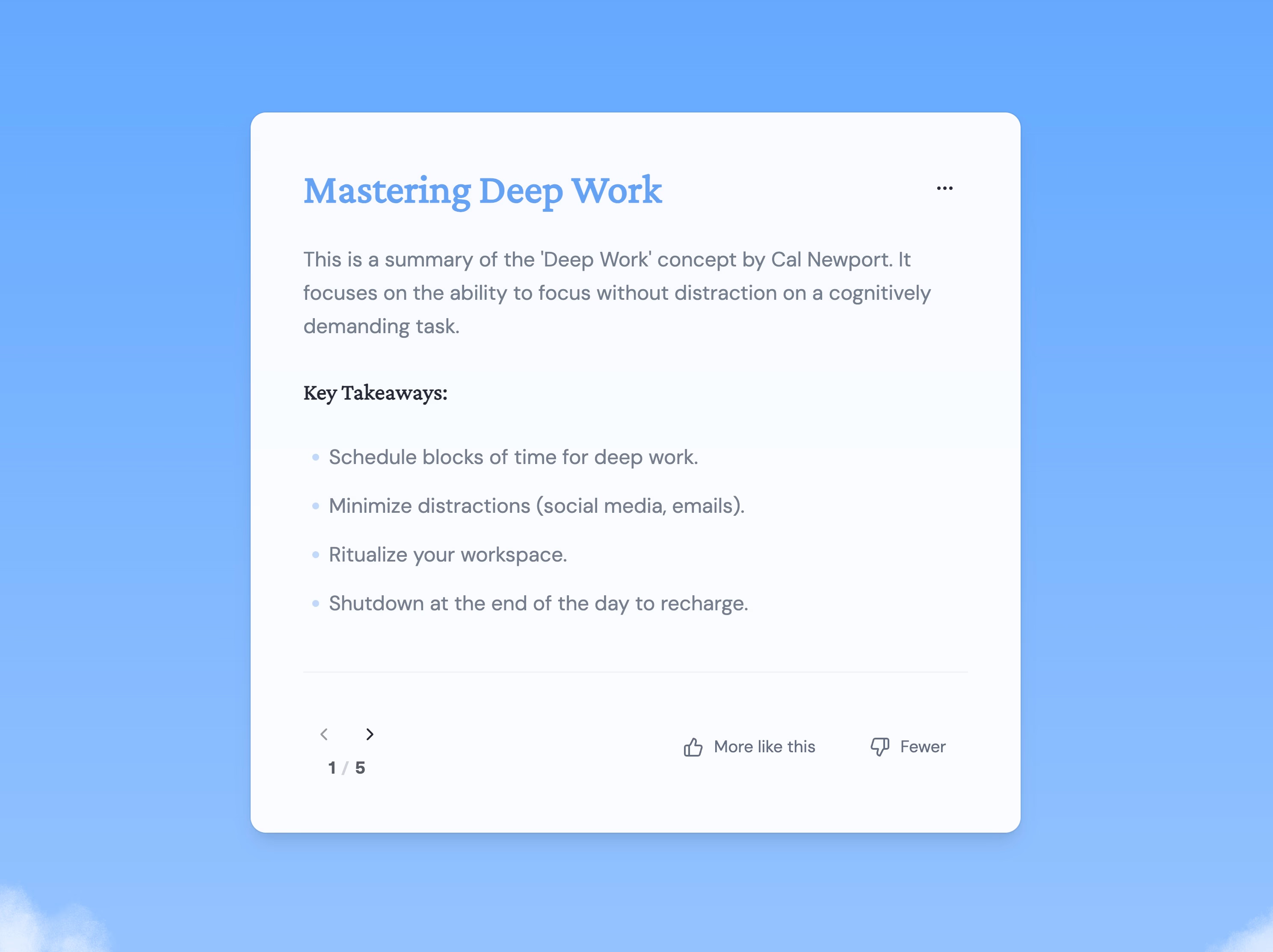
And that’s it. Your dashboard will show today’s resurfaced notes, ready to review.
Review by email + AI quizzes
Here’s how it fits into your routine: Daily Brain Bits sends you a batch of notes right to your inbox, on whatever schedule you picked. It decides what to send based on which notes you review most, what you prioritize, and how often you’ve seen each one.
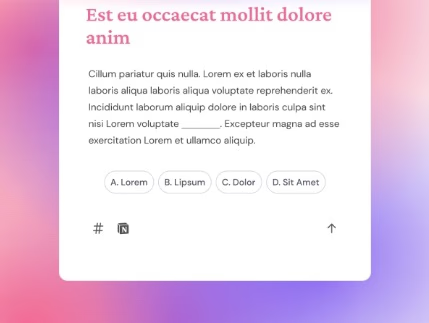
If you want some active recall practice, Daily Brain Bits can pull together AI-generated multiple-choice quizzes from your actual notes. It hides the answers, like terms, frameworks, or summaries, until you try to answer. This way, you are actually practicing remembering, not just re-reading.
Over time, you can decide which notes are more important and dial back on notes you just want for reference. That keeps your daily reviews more focused.
So, here’s your routine with Daily Brain Bits:
- Open your daily email or visit your dashboard.
- Check out the resurfaced notes, or go through the AI quiz.
- Adjust what’s prioritized if you see something you want more or less often.
The whole review schedule runs itself, using the Notion notes you already keep up to date.
When to stay in Notion vs switch
So, how do you decide whether to stick with your own spaced repetition setup in Notion or move to a dedicated tool like Daily Brain Bits? It mainly depends on the size of your deck, what you want to accomplish, and how much time you can spend maintaining it.
DIY in Notion: Great for small decks and tinkerers
If you’re working with just a handful of notes and enjoy tinkering with your systems, Notion can do the job. You have full control, every setting and every view, right alongside the rest of your projects.
This approach shines with smaller decks, maybe 10 to 50 items. Think core concepts for an upcoming exam or a few frameworks you revisit for work.
There’s room for plenty of customization, like:
- Formatting flashcards, toggles, and answers the way you want
- Tweaking intervals and review logic to fit your taste
- Tailoring database properties, tags, and filters for your workflow
But here’s the catch: manual tracking only scales so far. Once your item count starts climbing, keeping intervals up to date and remembering daily reviews gets old fast.
Since Notion won’t nudge you with reminders, you’ll need to check your review queue yourself every single day. That extra maintenance is the main reason many people outgrow a DIY setup.
Switch to Daily Brain Bits: Resurface your whole knowledge base
Now, if you’ve built up a bigger Notion knowledge base, maybe hundreds of notes you are not reading anymore, a tool like Daily Brain Bits can make a difference. Instead of fiddling with manual setups and formulas, you connect your notes and get scheduled reviews sent straight to your inbox.
This tends to work best if:
- Your notes go beyond flashcards and include in-depth resources or documentation
- You want to practice active recall with AI-generated quizzes, along with standard note resurfacing
- You want reviews to happen automatically, without custom filters or formulas
With Daily Brain Bits, you keep writing and storing your notes in Notion. The app takes care of scheduling, email delivery, and quiz generation, all the moving parts you’d otherwise manage yourself.
The bottom line
Stick with Notion if you like getting hands-on with your setup and your review deck is small and targeted.
If your notes are piling up and you need reviews to happen without the daily upkeep, switching to Daily Brain Bits probably makes more sense.
Conclusion: Make your Notion notes stick
Notion can support a simple spaced repetition system with a database, a review-date formula, a Due Today view, and hidden answers for active recall. The method works best for small, focused decks when you are willing to maintain the schedule yourself. If your knowledge base is larger or you want reviews and quizzes to happen automatically, Daily Brain Bits can handle more of the process. Start with a few high-value notes, review them consistently, and expand only once the habit feels easy.
